
The BlueOS Odometer Extension tracks your vehicle's usage stats and maintenance history, providing you with valuable data about your vehicle's operational life and history. When understanding failure rates and the cost of system operations vs. time, data is key! This extension aspires to be like the odometer of your car - but perhaps easier to fiddle with!
- Uptime Tracking: Counts total minutes of vehicle operation
- Armed/Disarmed Time: Tracks how long your vehicle has been in armed vs. disarmed states
- Per-Thruster Run Hours: Individual run-hour tracking for each thruster
- Thruster Duty Cycle: Average throttle per thruster while armed
- Battery Monitoring: Records battery voltage and detects battery swaps
- Maintenance Log: Add and track repair, replacement, and maintenance events, plus BlueOS Self Test runs imported automatically
- Data Export: Download all collected data as CSV files, or a PDF report
- Cockpit Widget: Session distance, total hours and lifetime energy at a glance
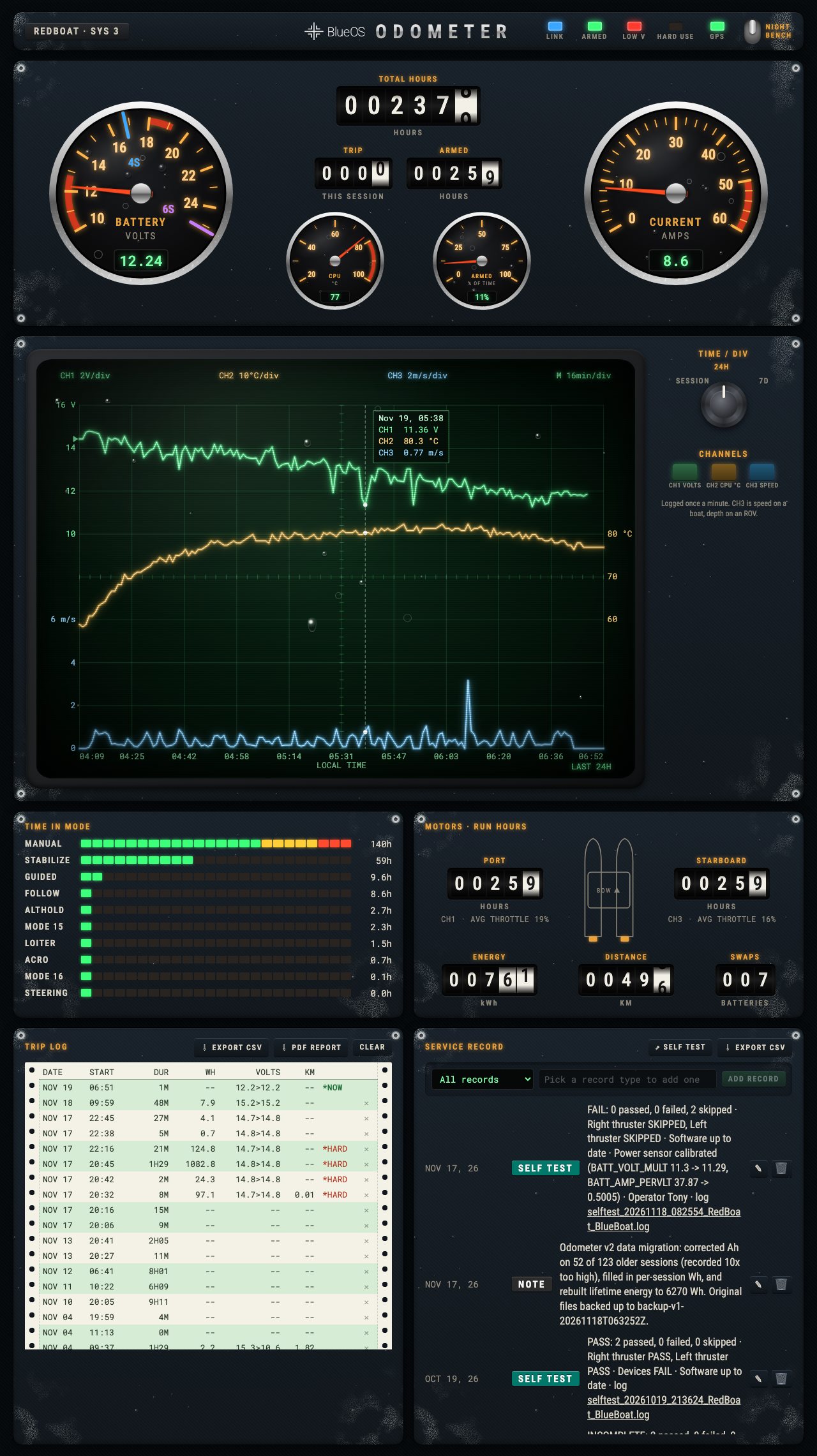
The page is laid out like an instrument panel, with a Night (backlit dash) and Bench (80s test-gear) look; the switch at the top right picks one and is remembered.
- Header: vehicle name and autopilot system ID, plus tell-tale lamps for link, armed, low voltage (3.2 V/cell for 4S or 6S packs), hard use (this session) and GPS fix.
- Cluster: battery volts (4S/6S maximum marks and low-voltage zones), current, CPU temperature and share of time armed, with mechanical counters for total hours, this session and armed hours. Gauges update every few seconds.
- Scope: battery volts, CPU temperature and speed (boats) or depth (ROVs) over this session, the last 24 hours or 7 days. Hover or touch for values.
- Time in mode, motor/thruster run hours with average throttle, devices, lifetime energy, distance and battery swaps.
- Trip log: one row per session, with CSV export of the full per-minute log, a PDF report, and delete/clear.
- Service record: filter by type (all records by default); pick a type to add one, optionally resetting motor run hours. Records can be re-dated or deleted, and exported as CSV.
Once launched in the Extensions Manager, install this extension directly from the Extensions page in your BlueOS web interface.
To install Odometer manually from the BlueOS Extension Manager, choose Install from Scratch from the + icon in the lower right of the Installed Extensions page and use:
Image: vshie/blueos-odometer
Tag: 2.0.1
(Use the beta tag for the latest development build.)
Copy and paste this permissions JSON when BlueOS asks for extension permissions:
{
  "ExposedPorts": {
    "80/tcp": {},
    "8765/tcp": {}
  },
  "HostConfig": {
    "CpuPeriod": 100000,
    "CpuQuota": 100000,
    "Binds": [
      "/usr/blueos/extensions/odometer/data:/app/data",
      "/usr/blueos/extensions/odometer/logs:/app/logs"
    ],
    "ExtraHosts": ["host.docker.internal:host-gateway"],
    "PortBindings": {
      "80/tcp": [
        {
          "HostPort": ""
        }
      ],
      "8765/tcp": [
        {
          "HostPort": ""
        }
      ]
    }
  }
}
The other fields don't matter, make them something logical!
The Odometer polls the Mavlink2Rest API once per minute to:
- Increment the total uptime counter
- Check armed status and increment the relevant counter (armed or disarmed). If the autopilot stops sending HEARTBEAT for more than 10 seconds, the vehicle is treated as offline (not armed), since Mavlink2Rest keeps serving its last cached message
- Monitor battery voltage and detect battery swaps (when voltage increases by > 1V)
- Record all this data to a persistent CSV file
The extension finds the vehicle on its own:
- BlueOS host: it tries
host.docker.internal, the container's default gateway (the Docker host),192.168.2.2andblueos.local, then keeps using whichever answers. The same host is used for the vehicle name and clock. - Autopilot system ID: it is discovered from Mavlink2Rest (the system whose component 1 sends a fresh autopilot HEARTBEAT), so vehicles with
SYSID_THISMAV/MAV_SYSIDother than 1 are tracked. If that system goes quiet, it is rediscovered.
Changes are logged once (endpoint in use, autopilot found or lost, vehicle online/offline), and the current state is shown as a chip at the top of the page and returned under connection in /stats.
A startup is counted when the vehicle has rebooted (detected from the kernel boot ID), not when only the extension restarts. Dive time is only counted for ArduSub vehicles.
Each power-on block (or hot battery swap) is a session. Session energy comes from the autopilot's BATTERY_STATUS.energy_consumed (falling back to current_consumed in mAh x average voltage), measured from the reading when the session started so an extension restart never counts the same energy twice. Lifetime energy is the sum of all closed sessions plus the current one.
The extension detects vehicle type from the MAVLink HEARTBEAT message and tracks run hours per thruster (ROVs) or per motor (boats):
- ArduSub (ROV): 4–8 thrusters (default 8)
- BlueBoat/ArduRover (boat with skid steer): 2 motors
Thrusters are mapped to output channels from the autopilot's SERVOn_FUNCTION parameters (Motor1-8 for ArduSub, ThrottleLeft/ThrottleRight for boats), so a 6-thruster BlueROV2 shows 6 thrusters. Until the parameters can be read, ArduSub defaults to 8 thrusters and boats to 2 on channels 1..N.
Output PWM is sampled every 5 seconds. A thruster's run time only accrues while the vehicle is armed and that thruster's output is more than 25 us from neutral (1500 us), so each thruster's hours reflect when it actually ran.
A session is flagged as hard use when either:
- its peak battery current (sampled once per second while armed) exceeds 70 A on ArduSub or 22 A on ArduRover/boats, or
- a thruster/motor was above 80% throttle (more than 320 us from neutral) for more than 20% of the armed time.
Older sessions, recorded before throttle time was tracked, are judged on peak current alone. The flags on recorded sessions are re-evaluated whenever the rule or the vehicle type changes. The UI shows position grids to correlate numbers with physical layout (e.g. vertical vs horizontal thrusters for ROVs, port/starboard for boats).
Accessories (added via Add Device) accrue run time whenever their output differs from their configured Off PWM (default 1100 us, typical for lights; use 1500 for a gripper).
The maintenance log helps you track all important events related to your vehicle's upkeep. You can access it through the web interface, where you can:
-
Add New Records:
- Select an event type (Repair, Replacement, Maintenance, Inspection, Thruster Sticking, or Note)
- Add detailed description of the work performed
- For Replacement or Repair: optionally select which thruster(s) were replaced/repaired and check "Reset run hours" to zero the run-time for those thrusters
- For Thruster Sticking: select which thruster(s) were found sticking and required minor intervention
- Records are automatically timestamped with the current time
-
Edit Records:
- Click the pencil icon next to any record
- Modify the date and time to reflect when the event actually occurred
- This is useful for logging past maintenance events
-
Delete Records:
- Click the trash icon next to any record
- Confirm the deletion in two steps to prevent accidental deletions
- This action cannot be undone
-
View Records:
- Records are displayed in a table format
- Each record shows the date/time, event type (color-coded), and details
- Use the pagination controls to view more records
- Records are sorted by date (newest first)
-
Export Records:
- Download all maintenance records as a CSV file
- Useful for backup or analysis in spreadsheet software
The maintenance log supports the following event types, each color-coded for easy identification:
- Repair (Red): For fixing issues or problems
- Replacement (Blue): For replacing components or parts
- Maintenance (Green): For documenting routine maintenance tasks
- Inspection (Amber): For system checks and inspections
- Thruster Sticking (Orange): For logging when a thruster motor was found sticking and required minor intervention
- Note (Grey): For general notes or observations
When the BlueOS Self Test extension is running on the same vehicle (found through BlueOS's helper service list), Odometer checks it every 5 minutes and adds each finished test run to the service record as a Self Test entry, dated when the run started. The entry summarises the overall result, each output tested, network, device and software checks, any power-sensor calibration applied, the operator and serial number, and names the run's log (linked to the full log while Self Test is running). Thrusters that failed are tagged on the record. A run left unfinished is imported once it is 2 hours old. Each run is imported once: deleting an imported entry does not bring it back.
Odometer offers two widgets in Cockpit's edit menu, alongside the other extension widgets:
- Odometer: a small strip with this session's distance, total hours and lifetime kWh.
- Odometer Service Record: the service record, newest first, with the same type filter and form as the main page for adding records (including thruster tags and run-hour resets). It sits in Cockpit's collapsible container titled "Service Record" and starts expanded; collapse it from Cockpit's title bar. Re-dating and deleting records stay on the main page.
Both are advertised through cockpit_extras.json and load through BlueOS's extension proxy, so a placed widget keeps working after the extension is reinstalled. Odometer also streams its counters to Cockpit's data lake over a WebSocket on port 8765.
- BlueOS 1.3.1 or newer, with an ArduPilot autopilot (ArduSub or ArduRover) connected through Mavlink2Rest
This project is licensed under the MIT License - see the LICENSE file for details.